CC Switch download and installation
CC Switch manages provider configurations for tools such as Claude Code, Codex and Gemini CLI. Guangji API supports one-click import from its console, so you can avoid entering every setting from scratch.
Already installed it? Go to one-click import.
Official links
| Link | Purpose |
|---|---|
| CC Switch website (Chinese) | Product information and download entry |
| Official GitHub repository | Source code, updates and project issues |
| Download releases | Installation packages for your system |
| Complete official manual (Chinese) | All features and version-specific details |
This guide focuses on Guangji API setup and everyday use. Interfaces can vary by version; consult the official manual if yours differs.
1. Install CC Switch
- Open the website or releases page above.
- Choose a package for your operating system and processor architecture. Do not download the Source code archive for ordinary installation.
- Install and open the app.
| System | Installation |
|---|---|
| Windows | Run the Windows .msi installer, or fully extract the portable .zip before starting it |
| macOS | Download the macOS package and place the app in Applications |
| Linux | Select .deb, .rpm or AppImage for your system and follow the official instructions |
The coding tools managed by CC Switch are installed separately. Check its Apps page for an installation option, or follow the target tool's official instructions.
2. Find the main controls
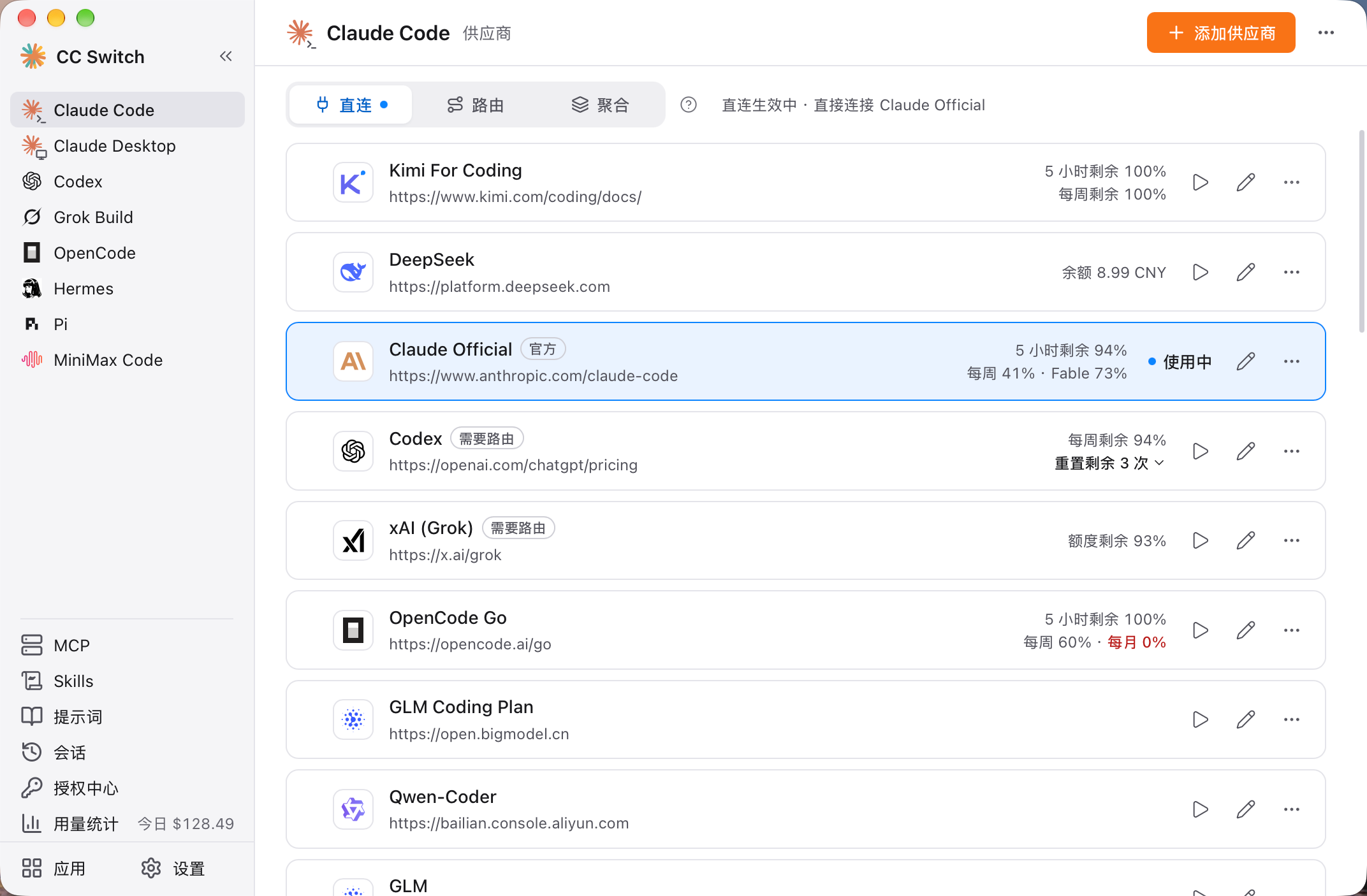
Official Chinese interface example. Providers, balances and models shown here are illustrative and do not describe Guangji API services or prices.
View full size| Location | What to do |
|---|---|
| Left application list | Select the tool you actually use, such as Claude Code or Codex |
| Top-right Add provider button | Use for manual setup; skip it when importing from the console |
| Provider cards | Find your imported Guangji API card and choose Switch or its activation icon |
| Active status | Confirm the provider selected in direct mode |
| Apps and Settings at bottom left | Manage tools, export backups or check versions |
The triangular button on the right of a card activates it in the illustrated version. Other versions may label it Switch. Choose your own Guangji API card.
3. Prepare your Guangji account
Sign in to the console, create an API key, and check balance, key quota and model permissions.
Continue with the illustrated import guide. Installation or successful import alone does not prove model calls work; verify with a request in the target tool.