Everyday CC Switch use
After connecting Guangji API, the most common tasks are switching configurations, updating keys and reviewing usage.
Switch providers and models
Select your application in the sidebar, find the provider card and activate it. Check its status, reopen the target tool and confirm its selected model.
Each application manages its providers separately. A model available on the previous provider may not work with the new one.
Update a key, address or model
Use the edit icon on the provider card, change the relevant fields and save. If the tool still uses old settings, reactivate the provider and restart the tool or terminal.
For routine key rotation, test the new key before disabling the old one in Guangji. Deleting a CC Switch configuration does not revoke the actual Guangji API key.
Direct, routing and aggregation modes
| Mode | When to use it | Remember |
|---|---|---|
| Direct | Your Guangji configuration already matches the target tool's protocol | The tool connects directly; a simple starting point |
| Routing | You need local protocol conversion or backup providers | Requests pass through the local CC Switch service, which must keep running |
| Aggregation | You want models from multiple providers in one tool | Available for some apps; model-based routing is not automatic failover |
Clicking a mode tab only displays that page. Use Start routing, Switch to aggregation or Return to direct to change the active mode. Check the active-mode indicator.
A local address in the target tool can be normal in routing or aggregation mode. Check the upstream provider inside CC Switch before replacing that address. Its local routing service is separate from a system internet proxy.
You do not need failover, aggregation or extensions for an initial connection. See the official manual for advanced setup.
Review usage and actual charges
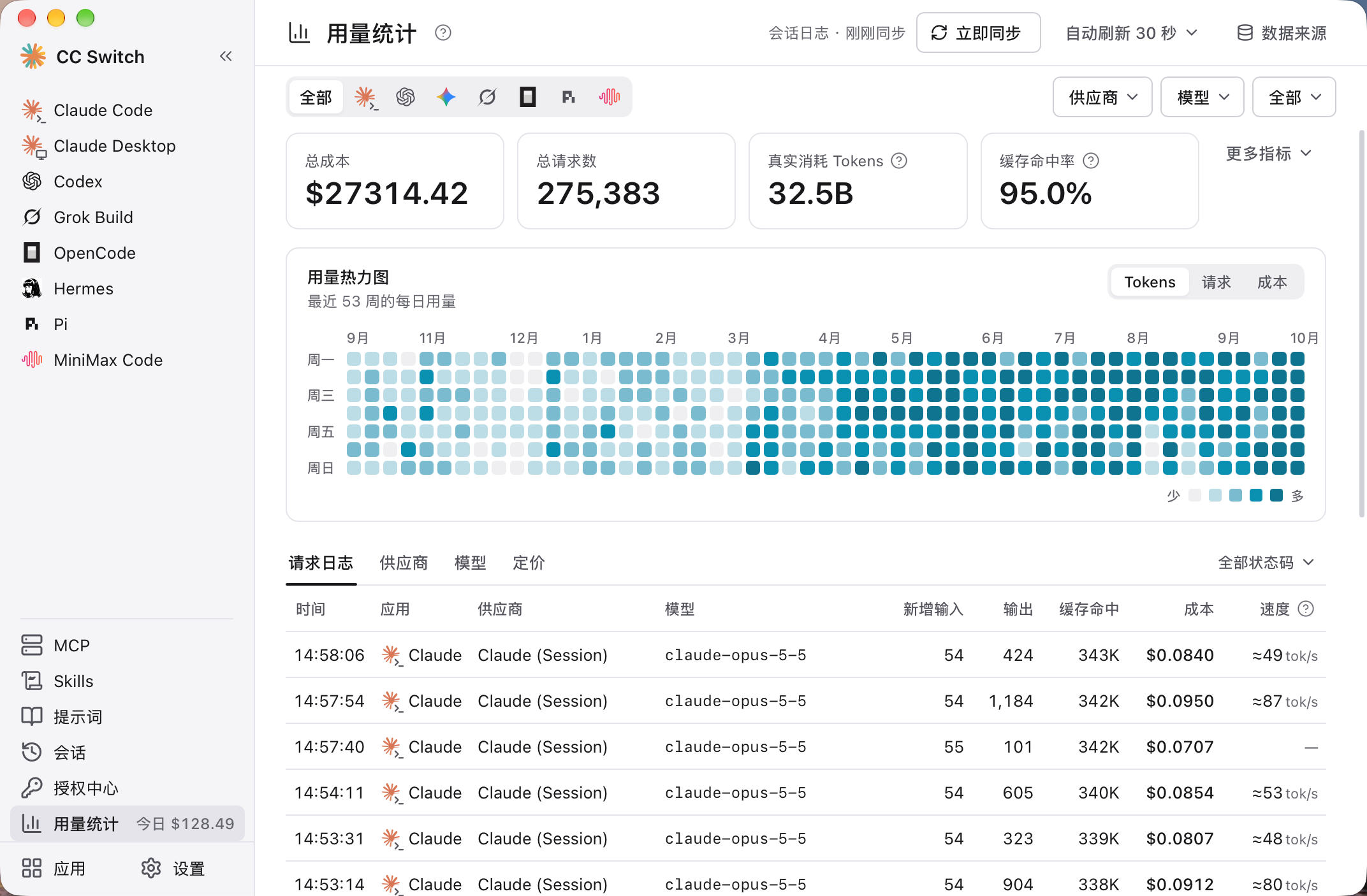
Official Chinese interface example. Amounts, models and requests shown here are not Guangji API billing records.
View full sizeOpen Usage statistics in the sidebar and filter by application, provider or model. Data sources and synchronization vary with mode and version.
Use the Guangji console balance and request logs to confirm actual Guangji charges. Local estimates can differ because of prices, caching or recording coverage. See usage logs.
Back up or move to another computer
- Open Settings → Data and find the export or backup section.
- Choose Export SQL backup and save it securely.
- On the other computer, choose Select SQL file, select your exported backup and choose Import.
- Check the providers and activate the intended configuration. Install the target coding tools on the new computer separately.
Importing or restoring overwrites current settings. Export the current configuration first. Backups can contain API keys; keep them out of public repositories and group chats.
MCP, prompts and Skills
These are optional; connecting Guangji API does not require them.
| Feature | Purpose | Suggestion |
|---|---|---|
| MCP | Connect additional data sources or tools | Add trusted services you understand and grant only necessary access |
| Prompts | Save and switch working instructions | Preserve your current instructions before enabling a replacement |
| Skills | Add task-specific capabilities | Read the skill's instructions and actions before installing |
Support varies by application. Refer to the official manual.