WorkBuddy illustrated setup
Install WorkBuddy, then prepare a Guangji API key and an available model ID.
1. Open model settings
In WorkBuddy settings, choose Model → Add model.
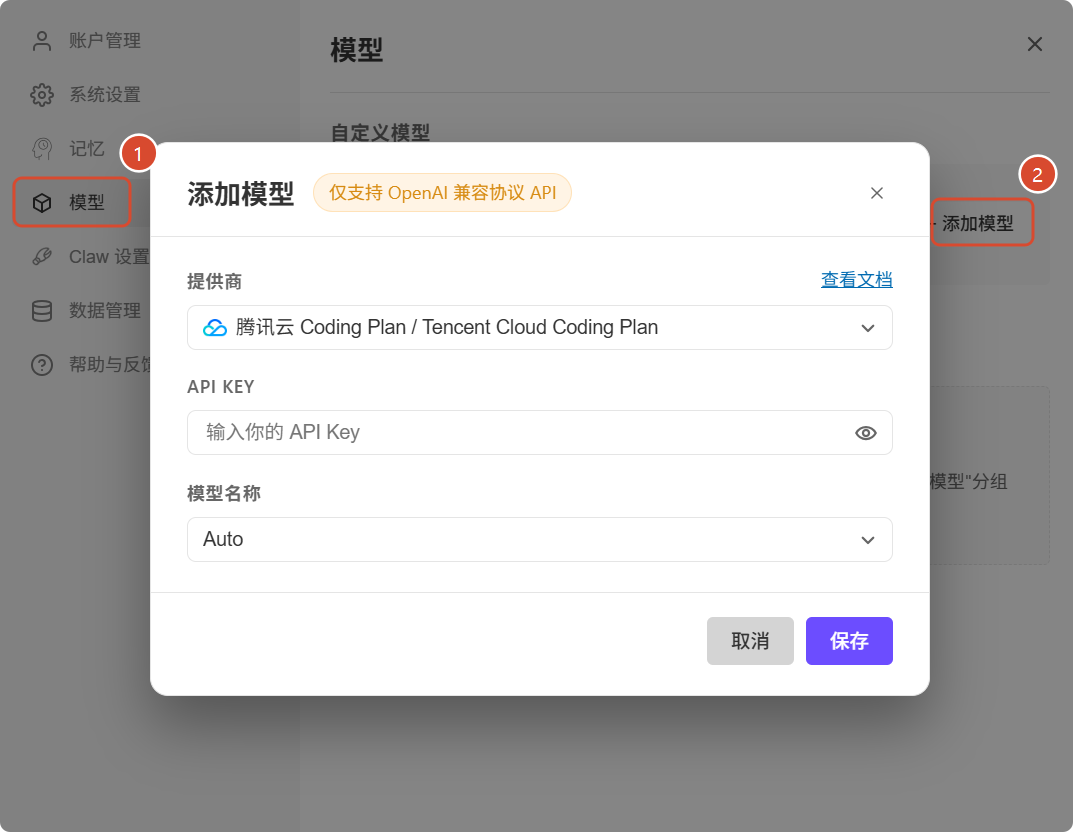
Official Chinese interface: click ① Model, then ② Add model. Change the preset provider to Custom in the next step.
View full size2. Enter your Guangji API configuration
Select Custom in the provider dropdown and fill in these values.
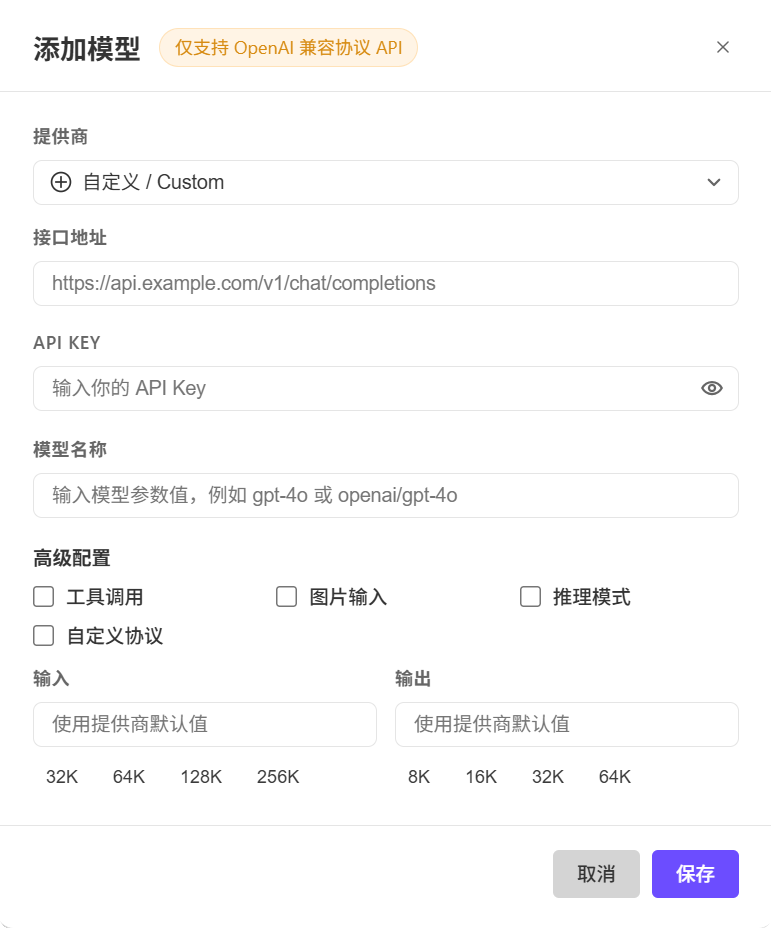
Official Chinese interface. Fields from top to bottom: Provider, Endpoint, API Key, Model name, Advanced settings. Save is at the bottom right.
View full size| Field | Value |
|---|---|
| Provider | Custom |
| Endpoint | https://guangjiapi.top/v1/chat/completions |
| API KEY | Your complete Guangji API key |
| Model name | An exact model ID from the Guangji marketplace, available to your key's group |
The Endpoint field above takes the complete chat-completions URL. If your version asks for a Base URL, use https://guangjiapi.top/v1. Do not use the console URL or add /v1 twice.
Match advanced capability options to the model and Guangji channel. File operations and agent tasks need tool-call support. Leave Custom protocol off and retain default context and output limits when unsure.
3. Save and try it
Save, return to chat and select your model under Custom models. Send a short message such as “Reply only: connected.”
Check the model and consumption in your Guangji usage logs. Requests use your Guangji balance; longer tasks can make multiple calls.
Troubleshooting
| Symptom | Check |
|---|---|
| Model is disabled | Complete the endpoint and API key, then save |
| 401 / Authentication failed | Use a complete, valid Guangji key |
| 404 / Endpoint missing | Check the request path and duplicated /v1 |
| Model unavailable | Match the exact model ID and key group permissions |
| Chat works, tasks fail | Verify tool-call support and capability settings |
Use Support at the bottom right for help. Share error text and redacted screenshots, never your full API key.
Images are from the official WorkBuddy model configuration guide. Interface details may vary by version.